
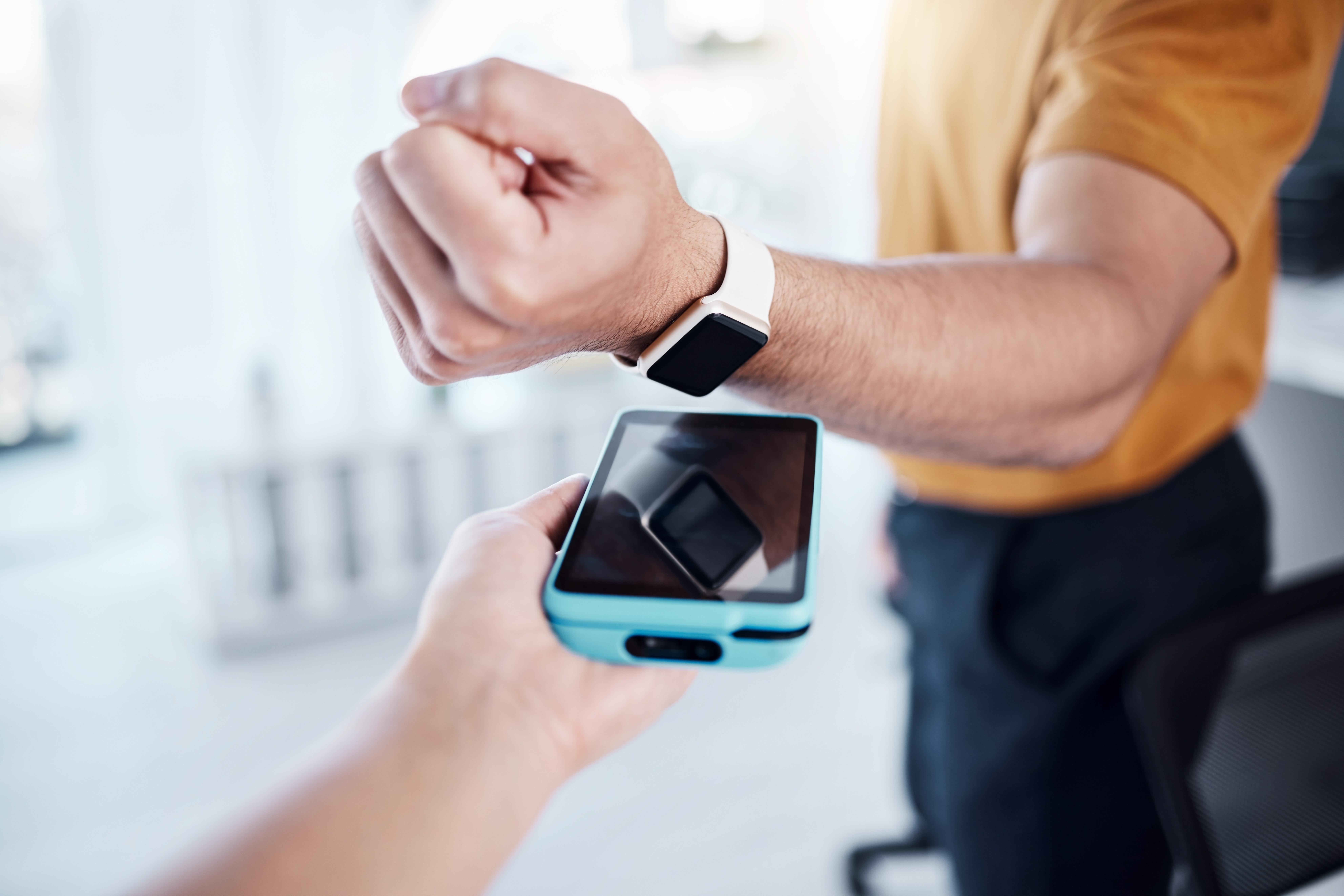
Adding your Bank of America card to Apple Pay lets you make secure contactless payments with your iPhone or Apple Watch. The setup process only takes a few minutes and includes a quick verification step to help protect your account. In this guide, you’ll learn exactly how to add your Bank of America Card to Apple Pay using the Bank of America mobile app.
How to Add your Bank of America Card to Apple Pay
Start by opening the Bank of America mobile app and signing in to your account. From the main account screen, scroll past your banking accounts until you reach the credit card section.
If you have multiple Bank of America cards, select the one you want to add. This will open the card details page where you’ll find additional account options.
Scroll down until you reach the Digital Wallets section, then tap Add Cards to Apple Wallet.
Verify Your Card
Before your card can be added, Bank of America will ask you to verify that you have the physical card.
On the verification screen, you’ll be asked to enter:
- Your card’s expiration date
- The three-digit security code (CVV) on the back of the card
This extra verification helps prevent unauthorized users from adding your card to another device, making Apple Pay a secure payment method.
After entering both pieces of information, tap Verify.
Connect to Apple Wallet
A pop-up message will inform you that you’re about to connect with Apple Wallet, which is operated by Apple rather than Bank of America.
Tap Yes to continue.
Next, choose where you’d like to add your card. You can select:
- iPhone
- Apple Watch (if paired with your iPhone)
Many users choose to add the card to both devices for added convenience.
The Apple Wallet screen will display your name and the last four digits of your card. Review the information, then tap Continue.
Review the Terms Before You Add your Bank of America Card to Apple Pay
Apple will display information about how certain device and card-related data may be used during verification and fraud prevention. If you’d like more details, you can review Apple’s data management information before continuing.
Next, you’ll see the Bank of America digital wallet terms and conditions. These explain how your card works within Apple Wallet. Importantly, adding your Bank of America Card to Apple Pay does not change your card’s rewards, interest rate, or fees.
After reviewing the agreement, tap Agree.
Wait for Verification
The verification process usually takes around 15 to 20 seconds.
During this time:
- Keep the app open.
- Don’t press the back button.
- Wait for the process to complete.
Once finished, a blue checkmark will confirm that your card has been successfully added.
Choose Your Default Payment Card
After the setup is complete, Apple will ask whether you’d like to make this your default payment card.
If this is the card you use for most everyday purchases, setting it as the default can make checkout faster. If you mainly use it for specific expenses, such as travel, you can choose another default card and switch between cards later in the Wallet app whenever needed.
Benefits of Using Apple Pay
Once you’ve completed the process, your Bank of America Card to Apple Pay setup is finished, and you can begin making contactless payments immediately.
Some of the key advantages include:
- Your actual card number is never shared with merchants.
- Apple Pay uses a unique payment token for every transaction.
- You continue earning the same cash back, rewards points, and promotional bonuses as when using your physical card.
- You can pay using your iPhone or Apple Watch anywhere Apple Pay is accepted.
Final Thoughts
Adding your Bank of America Card to Apple Pay is a quick and secure way to make everyday purchases more convenient. After completing the verification steps and accepting the terms, your card is ready to use for contactless payments while still earning all of your existing rewards and benefits. Whether you pay with your iPhone or Apple Watch, Apple Pay offers both convenience and enhanced security without changing how your Bank of America card works.






