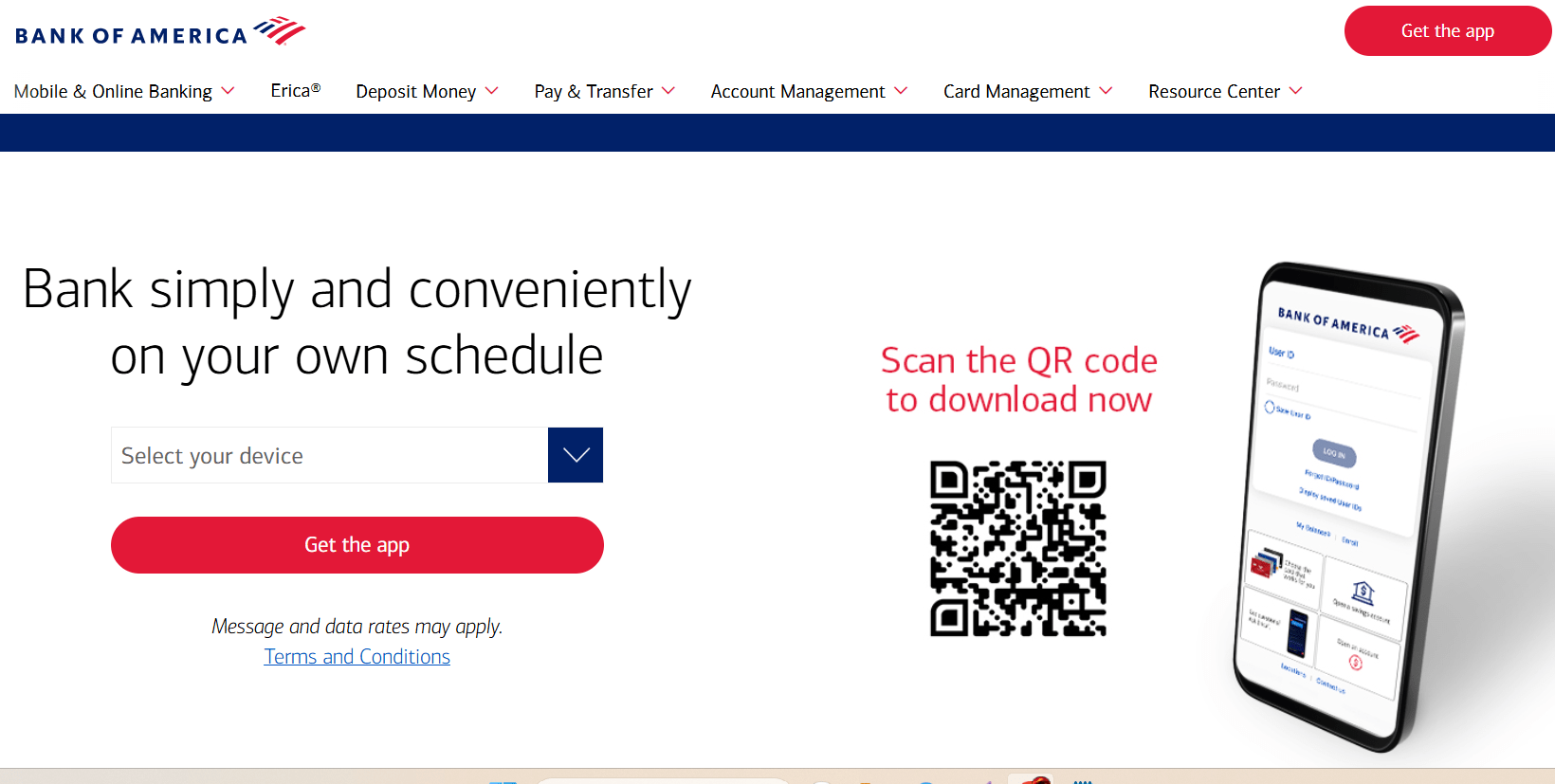
The Bank of America app gives you access to almost everything you need to manage your money from your phone. Whether you want to check transactions, download statements, deposit checks, transfer money, send wires, use Zelle, or manage your debit card settings, you can do it all without visiting a branch.
In this guide, we’ll walk through the most useful Bank of America app features and show you how to use them step by step.
How to View Transactions in the Bank of America App
One of the most common things you will do in the Bank of America app is checking your recent activity.
To view your transactions:
- Open the Bank of America app.
- Select the account you want to review.
- Scroll down to see your recent transactions.
Your transactions appear in chronological order, with the newest activity displayed at the top. This section includes purchases, deposits, withdrawals, transfers, and other account activity.
You can tap any individual transaction to view additional details, including:
- Merchant name
- Transaction date
- Posted date
- Category assigned by Bank of America
- Transaction amount
This screen is useful when you want to confirm whether a purchase went through, review your spending habits, or monitor your account activity regularly.
How to View Bank of America Statements and Documents
The Bank of America app also stores your official account documents, including monthly statements, tax forms, and important notices.
To access your statements:
- Open your account.
- Scroll down past spending tools, budgeting features, and other options.
- Tap Statements and Documents under Account Management.
Here you will find several categories:
Statements
This section contains your regular monthly account statements. You can open any statement as a PDF, view it, download it, or share it when needed.
Tax Statements
Tax documents, including forms such as 1099 forms, are stored here. Because these documents contain sensitive information, they must be downloaded before viewing.
It is recommended to store downloaded tax forms securely, such as in an encrypted folder or password manager.
Notifications and Letters
This section contains official messages from Bank of America, including security alerts, fee notices, and other account communications.
Other Account Documents
This category stores documents that do not belong in the previous sections.
You can also change the year selector at the top of the screen to view older documents. Online statements are generally available back to 2019. If you need older statements, you may need to request them through online banking on a computer.

How to Find Your Bank of America SWIFT Code
A SWIFT code is needed when someone from another country sends money to your Bank of America account.
To find your SWIFT code:
- Open your account details.
- Tap your account and expand the account information section.
- Scroll down until you see SWIFT codes.
Bank of America provides different SWIFT codes depending on the currency being sent.
For incoming US dollar transfers from another country, the commonly used SWIFT code is:
- BOFAUS3N
For transfers involving foreign currencies such as euros or pounds, the other SWIFT code may be used:
- BOFAUS6S
The easiest way to know which one to provide is to ask the sender what currency they are sending.
Remember:
- Routing numbers are used for transfers inside the United States.
- SWIFT codes are used for international transfers.
A SWIFT code is not private information. It identifies the bank, but you should still protect your account number and personal details.
How to Deposit Checks in the Bank of America App
The mobile check deposit feature allows you to deposit checks without visiting a bank branch.
To deposit a check:
- Open the Bank of America app.
- Tap Deposit Checks.
- Accept the mobile check deposit agreement.
- Sign the back of your check.
Before taking pictures, write:
“Deposit only at Bank of America”
under your signature. This helps prevent someone else from cashing the check.
Next:
- Take a picture of the front of the check.
- Take a picture of the back.
- Select the account where you want the money deposited.
- Enter the exact check amount.
- Review the details.
- Tap Submit.
For the best photo quality:
- Place the check on a dark, flat surface.
- Make sure all four corners are visible.
- Avoid shadows.
- Keep the image clear and readable.
After submitting, you will receive a confirmation number. Save it or take a screenshot for your records.
Bank of America recommends keeping the physical check for about a week after depositing it. Once the deposit is fully processed, you can safely destroy it.
Why Bank of America Check Deposits Show as Pending
After depositing a check, many users notice that the total deposit amount appears, but the available balance shows $0.
This does not mean something is wrong.
A pending deposit means Bank of America is verifying the check before making the money available.
The bank needs time to confirm:
- The check is legitimate.
- The funds exist in the sender’s account.
- The payment will clear successfully.
Deposits made before the cutoff time are generally available on the next business day. Deposits made late in the day, on weekends, or on holidays may take longer.
While waiting:
- Do not spend money from a check you do not fully trust.
- Avoid depositing checks from strangers who ask you to send money back.
- Keep the original check until everything clears.
Fake check scams often work by showing available funds temporarily before the check later bounces.
How to Set Debit Card Limits in the Bank of America App
Adjusting your debit card limits can help protect your account if your card is lost or stolen.
To manage debit card limits:
- Tap Menu.
- Select Manage Debit Card.
- Tap Set Limits.
You will see two main options:
Daily ATM Withdrawal Limit
This controls how much cash you can withdraw from ATMs each day.
Your limit depends on factors such as:
- Account type
- Account history
- Your relationship with the bank
Daily Purchase Limit
This controls how much you can spend using your debit card.
You can choose:
- Up to available balance
- A custom limit
Using your entire available balance as your daily limit can create unnecessary risk. If someone gets access to your card, they could potentially spend everything in your account.
A safer option is setting a custom limit based on your normal spending habits.
For example, if you mainly use your debit card for small daily purchases, a lower limit may provide better protection.
After choosing your amount, tap Save.
How to Order Checks Through the Bank of America App
If you need physical checks, you can order them directly through the app.
To order checks:
- Open your account.
- Scroll to the bottom.
- Select Order Account Supplies and Accessories.
You can choose the standard design or browse additional check styles.
Available designs may include:
- Security checks
- Colorful designs
- Professional styles
- Sports designs
- Other personalized options
After selecting a design, you can customize:
- Number of checks
- Starting check number
- Personal information
- Optional images
Checks are not free, and prices depend on the design you choose.
After placing your order, standard delivery usually takes around 7–14 business days.
How to Transfer Money Between Bank of America Accounts
Moving money between your own Bank of America accounts is quick and simple.
To transfer money:
- Tap Pay and Transfer.
- Select Transfer.
- Choose the account you are transferring from.
- Choose the account receiving the money.
- Enter the amount.
- Select the date.
- Review the details.
- Tap Transfer.
If you are paying a Bank of America credit card, the app may also show:
- Minimum payment due
- Statement balance
- Payment due date
Transfers between your own Bank of America accounts are usually instant.
Transfers involving external banks may take one to three business days.
How to Send Wire Transfers With Bank of America
Wire transfers are designed for larger payments, such as:
- Real estate purchases
- Large business payments
- International transfers
To send a wire:
- Tap Pay and Transfer.
- Select Wire.
- Tap Start a Wire.
- Add a recipient.
You will need recipient details, including:
- Full name
- Address
- Bank information
- Routing number or SWIFT code
- Account number
Always verify wire details carefully before sending money. Wire scams often involve criminals changing payment instructions at the last moment.
Never send money because someone pressures you through:
- Unexpected phone calls
- Emails
- Text messages
Once a wire is completed, recovering the money can be extremely difficult.
How to Use Zelle With Bank of America
Zelle allows you to send and receive money quickly through the Bank of America app.
To set up Zelle:
- Tap Pay and Transfer.
- Select Zelle.
- Tap Enroll.
- Choose your phone number or email address.
- Verify your identity.
Your phone number or email becomes your Zelle ID, allowing others to send you money.
To send money:
- Tap Pay.
- Add a recipient.
- Choose whether they are a person or business.
- Enter their information.
- Review the details.
- Tap Pay.
Always double-check the recipient’s information.
Zelle payments are similar to cash. Once sent, they are difficult to reverse.
Never send money to someone claiming to be from Bank of America’s fraud department. The bank will never ask you to send money to yourself to “protect” your account.

How to Send International Wire Transfers With Bank of America
International wires require additional information, including:
- Recipient’s country
- Currency
- SWIFT or BIC code
- IBAN or account number
Remember:
- SWIFT identifies the bank.
- IBAN identifies the specific account.
When sending internationally, choosing the right currency matters.
Sending in the recipient’s local currency may avoid upfront wire fees, although the exchange rate may include a small markup.
Before sending:
- Confirm the recipient’s name matches their bank records.
- Verify all account details.
- Review the exchange rate.
- Check the final amount.
International transfers cannot easily be reversed, so accuracy is extremely important.
How to Dispute a Transaction in the Bank of America App
If you notice an incorrect charge, you can start a dispute directly through the app.
To dispute a transaction:
- Open your account.
- Select the transaction.
- Scroll down.
- Tap Dispute Transaction.
Before starting a dispute, remember:
- The transaction must be posted, not pending.
- You need a legitimate reason.
Examples include:
- A purchase never arrived.
- You were charged the wrong amount.
- A service was not provided.
If you believe the transaction is fraud, contact Bank of America immediately and lock your card.
After submitting a dispute, you can track the claim through your Bank of America communication inbox.

Final Thoughts
The Bank of America app offers much more than checking your balance. From managing transactions and statements to transferring money, depositing checks, controlling debit card limits, and protecting yourself from scams, the app gives you almost everything you need to manage your finances.
Learning how to use these features can help you save time, stay organized, and keep better control of your money.