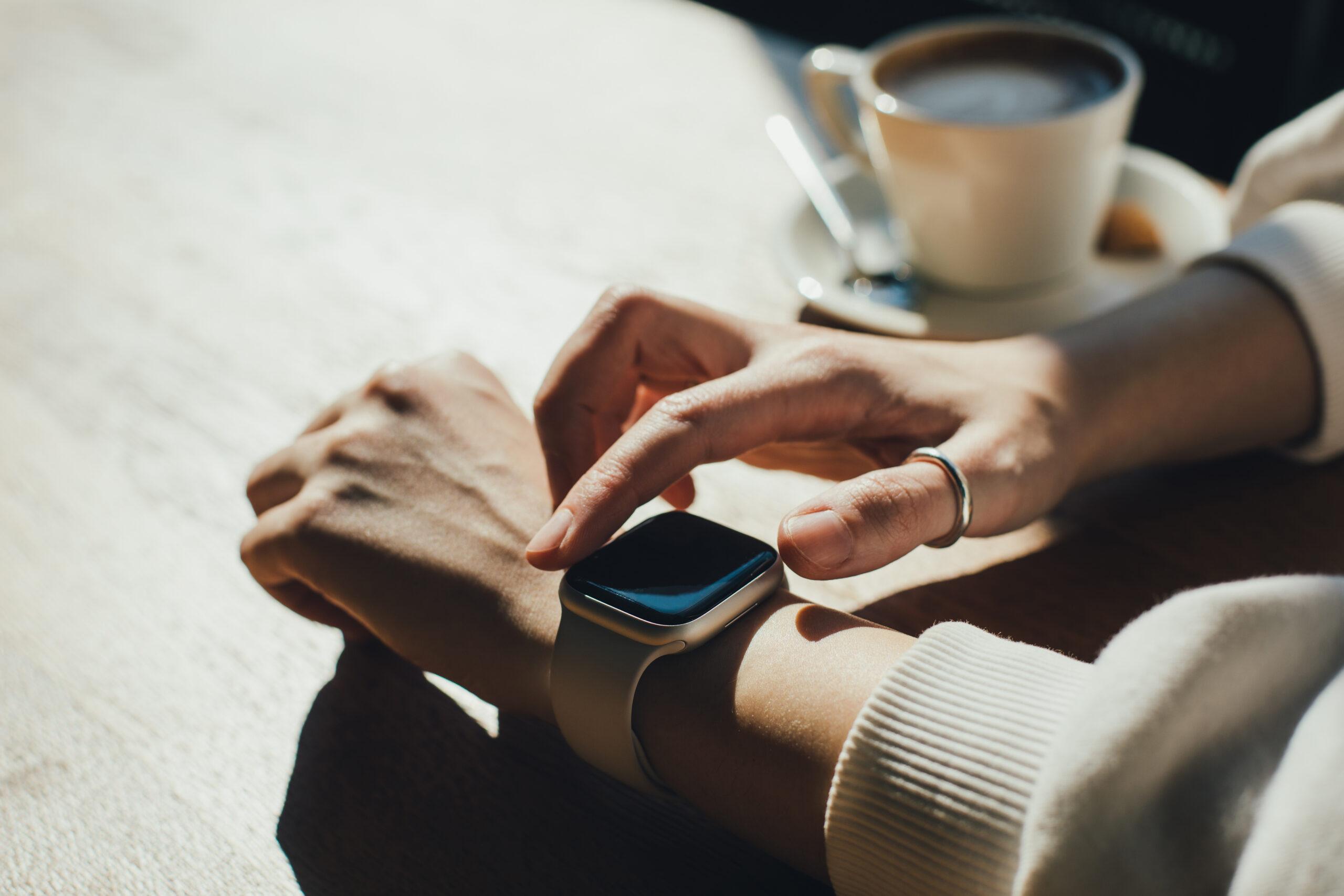
Adding a Chase card to Apple Watch is a quick way to make payments without carrying your physical card or taking out your iPhone. The process works for both Chase credit cards and debit cards, and you can complete it directly through the Chase app.
How to Add Your Chase Card to Apple Watch
To add your Chase card to Apple Watch, start by opening the Chase app on your iPhone. You will see your accounts listed on the main screen.
Find the credit or debit card you want to add and tap on it. Once you open the card, look underneath the card image for several account options.
Tap Manage account.
This will take you to the settings for your card. There are several options on this screen, but the one you need is under the Card setup and maintenance section.
Tap Add cards to digital wallets.
You will then see several digital wallet options, including Apple Wallet, PayPal, and other available services. Select Apple Wallet.
Select Your Apple Watch
What you see next depends on whether the Chase card is already connected to your iPhone.
If you have never added the card to an Apple device before, Chase may ask whether you want to add it to your iPhone or Apple Watch. Select Apple Watch.
If the card is already in Apple Wallet on your iPhone, you will instead see the Apple Wallet screen with two tabs at the top: iPhone and Apple Watch.
The iPhone tab is selected automatically. Tap the Apple Watch tab.
You will now see the cards that are available to add to your watch. Cards that have not been added yet will show an Apple Pay logo and an Add to Apple Wallet button.
Find your card and tap Add to Apple Wallet.
Complete the Card Verification
The next screen will say Add Card to Apple Pay and will display the last four digits of your card number.
You shouldn’t need to enter the card information manually. Chase and Apple handle much of the setup automatically.
Tap Continue.
Chase will then contact the card issuer to verify the card. This normally takes a few seconds. Keep the app open during this process because closing it could require you to start the setup again.
Once verification is complete, you will be asked to accept the applicable terms and conditions.
Scroll down and tap Agree.
Apple will then add the Chase card to your Apple Watch. You may see an Adding to Wallet screen with a loading indicator while this happens.
Choose Your Default Card
After the Chase card has been added, you may be asked whether you want to make it your default card.
Your default card is automatically selected when you double-click the side button on your Apple Watch to make a payment.
If you use this Chase card for most of your everyday purchases, making it your default card can be convenient. You won’t have to scroll through your other cards every time you pay.
If you only plan to use the Chase card occasionally, select Not Now and keep your existing default card.
Confirm Your Chase Card to Apple Watch Was Added
After completing the setup, you will return to the Apple Wallet section in the Chase app.
Go back to the Apple Watch tab and check your card. It should now show as linked.
That confirms your Chase card to Apple Watch setup is complete, and the card is ready to use for Apple Pay purchases.
How to Pay With Your Chase Card on Apple Watch
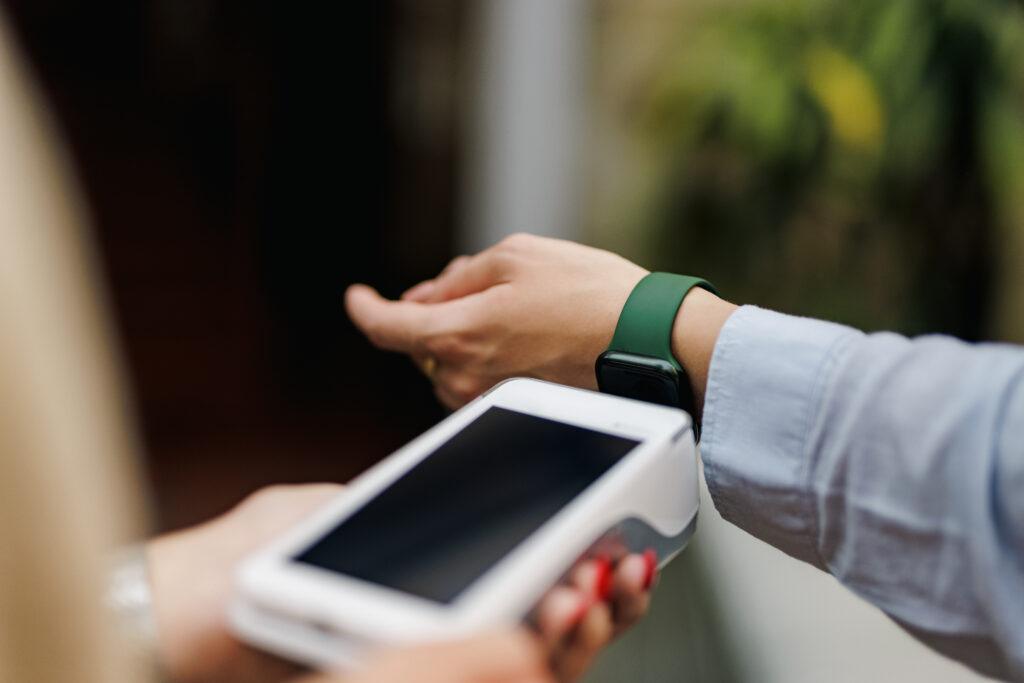
Once your Chase card to Apple Watch setup is finished, paying is simple.
When you’re at a store that accepts contactless payments:
- Double-click the side button on your Apple Watch.
- Your default card will appear automatically.
- Hold your Apple Watch near the payment reader.
- Wait for the payment confirmation.
You don’t need to take out your phone or physical Chase card.
If you have multiple cards in Apple Wallet, you can also select a different card before holding your watch near the reader.
Apple Watch Payment Security
Using your Chase card through Apple Pay doesn’t simply expose your actual card number during a transaction.
Apple Pay uses a device-specific number associated with your Apple Watch rather than sending your actual card number to the merchant. This adds another layer of security when you make contactless payments.
For that reason, using Apple Pay can be a safer alternative to handing over or swiping your physical card.
Final Thoughts
Adding a Chase card to Apple Watch only takes a few minutes. You can start the process through the Chase app, select Apple Wallet, choose your Apple Watch, verify the card, and accept the terms.
Once your Chase card to Apple Watch setup is complete, you can make contactless payments directly from your wrist without needing your iPhone or physical card.