
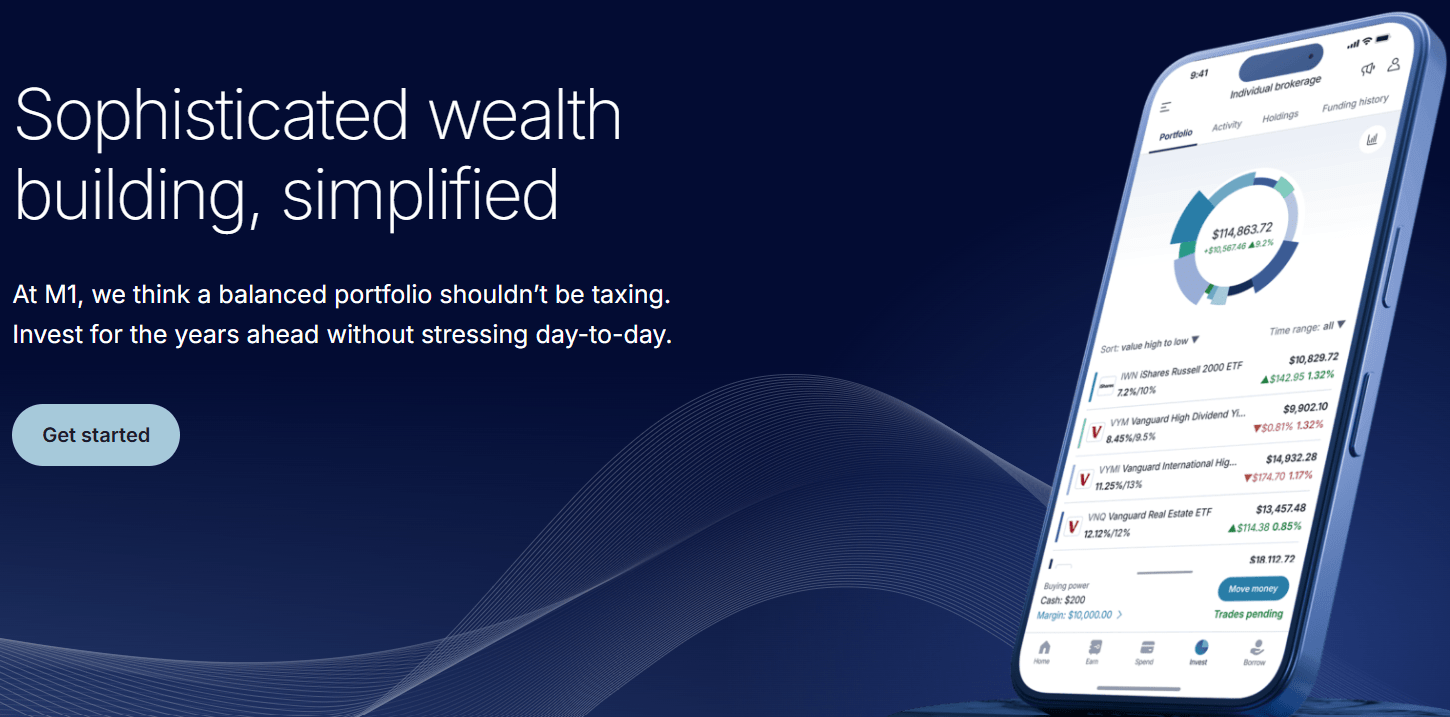
M1 Finance is a unique brokerage platform that blends automated investing with the ability to customize your portfolio. If you’re looking to begin your investing journey and want a mix of convenience and control, this guide will walk you through exactly how to open an M1 Finance account, set it up, fund it, and start trading. Whether you’re new to investing or switching platforms, this step-by-step breakdown will help ensure your setup is smooth and complete.
Getting Started: Creating Your M1 Profile
To open an M1 Finance account, the process begins by creating a profile on their platform. This isn’t your actual brokerage account yet—it’s more like your user account that gives you access to the tools M1 offers.
Step 1: Email Verification
- First, visit M1 Finance’s official website or app.
- Provide your email address and check your inbox for a verification email.
- Click the confirmation link, then return to the platform to continue.
- You’ll also receive a code via email; enter that to proceed.
Step 2: Enter Personal Information
You’ll need to input basic details such as:
- First and last name
- Home address
- Date of birth
- Citizenship status
Click Continue after each entry.
Providing Financial Details
Brokerage platforms are required by law to gather financial and identity information to comply with regulatory requirements. This might feel personal, but it’s a standard part of opening any investment account.
Step 3: Financial Information
M1 Finance will ask you to provide:
- Your annual income
- Estimated liquid net worth (cash and investments)
- Social Security Number (for tax purposes)
Make sure all information is accurate, as it will be reviewed for account approval.
Step 4: Review and Confirm
Double-check all your inputs on the review page. If everything looks good:
- Read the terms and conditions carefully.
- Accept them to proceed.
- Click Confirm to finish this section.
Congratulations! Your M1 profile is now created.
How to Open an M1 Finance Account (Brokerage)
With your profile ready, now it’s time to open an M1 Finance account—specifically, the brokerage account that will hold your investments.
Step 5: Select Account Type
- Click on Invest from the dashboard.
- You’ll be asked to choose between an individual brokerage account and a retirement account (such as a Roth or Traditional IRA).
- For this guide, we’ll focus on the individual brokerage account.
- Click Open Account.
Step 6: Answer Regulatory Questions
M1 Finance, like all brokers, will ask regulatory compliance questions such as:
- Are you affiliated with a brokerage or financial firm?
- Do you own more than 10% of a public company?
- Are you or a family member a public official?
- Are you subject to IRS backup withholding?
Answer honestly based on your situation. Most people will answer “No” to these.
Employment and Investment Profile
To further personalize your account, M1 will gather details about your financial background.
Step 7: Employment and Experience
You’ll be asked to provide:
- Employment status
- Job title and employer name
- Estimated net worth
- Investment experience (beginner, intermediate, advanced)
- Investment time horizon
- Importance of liquidity
This information helps M1 categorize you as an investor, but no one will verify your income or job.
Step 8: Add a Trusted Contact (Optional)
You can designate someone you trust—like a spouse or close friend—as a contact person on the account. This is optional and can be done later as well.
Finalizing Account Setup
You’re almost ready to invest.
Step 9: Review Agreements
Carefully review all disclosure documents and agreements. Once satisfied, click Continue to complete your brokerage account setup.
Funding Your M1 Finance Account
To begin trading, you need to fund your account. M1 Finance uses Plaid, a secure third-party service, to connect your bank account.
Step 10: Bank Linking via Plaid
- Click Continue on the funding prompt.
- Enter your phone number for verification.
- Select your bank (e.g., Capital One) and log in using your credentials.
- Authorize access to your bank information.
- Choose the account you want to link and confirm.
Once done, your bank will be linked, and you’re ready to fund.
Step 11: Initial Deposit
- Enter the amount you want to deposit (minimum is $100).
- Toggle off recurring deposits if you prefer one-time funding.
- Click Confirm Deposit.
Congratulations! You’ve successfully funded your brokerage. You’re now ready to build your investment portfolio.
Building Your First Portfolio
One of M1 Finance’s unique features is the “Pie” system—a visual representation of your portfolio. You create “slices,” each representing a stock or ETF with its own percentage of your total investment.
Step 12: Choosing Your Investments
- Click Build Your Portfolio.
- Choose sectors or individual stocks and ETFs from M1’s database.
- Add 4–5 stocks or ETFs to start.
- Adjust the percentage allocated to each slice (must total 100%).
- Click Save when satisfied.
How to Buy and Sell Using M1 Finance
Step 13: Buying Assets
- Click Invest > Choose Securities.
- Add stocks or ETFs to your investment basket.
- Click Add next to each.
- Once your pie is complete, click Buy.
- Enter the amount (e.g., $30), and hit Confirm Buy.
Note: All trades on M1 Finance are executed once per day in the afternoon (2 PM EST).
Step 14: Selling Assets
- Click Sell under your portfolio pie.
- You’ll be prompted to turn off auto-invest to make manual changes.
- Enter the amount you want to sell (e.g., $10).
- Hit Confirm.
The platform will process the sale and park the funds for your next move.
Adjusting and Managing Your Portfolio
Step 15: Editing Your Portfolio
- Click Edit Portfolio.
- To add a new asset, click Add Slice and search for your stock or ETF.
- Adjust your target percentages until they total 100%.
- Click Save and Confirm.
Step 16: Rebalancing Your Portfolio
You can rebalance your portfolio in two ways:
- Click the Rebalance button to automatically buy/sell assets and return to your set percentages.
- Add more funds and let M1 distribute them according to your preset targets.
This is useful for passive investors who prefer automated adjustments.
Final Thoughts
Opening an M1 Finance account is a user-friendly process, whether you’re an experienced investor or just getting started. By following the steps above, you’ll:
- Set up a secure profile
- Choose the right account type
- Fund your account with ease
- Build a custom portfolio
- Learn to buy, sell, and rebalance intelligently
If you’re aiming to open an M1 Finance account, this guide should be your starting point. From the initial email verification to placing your first trade, every step is tailored to empower you as an investor.
Whether you’re looking for long-term growth or simply want to explore diversified investing, open an M1 Finance account today and start building the portfolio that reflects your goals.






