Adding a Chase card to Apple Pay is a quick process that you can complete directly through the Chase mobile app. Whether you have a Chase debit card or credit card, the steps are essentially the same.
You do not need to manually enter your card number, expiration date, or security code when you add the card through the Chase app. Chase and Apple handle most of the setup for you.
How to Add Your Chase Card to Apple Pay
To add your Chase card to Apple Pay, start by opening the Chase app on your iPhone. Once you sign in, you will see your Chase accounts, including checking, savings, and credit card accounts.
Tap the Chase card you want to add to Apple Pay.
Once you open the card, you will see an image of the card near the top of the screen, along with its last four digits. Under the card image, you will see several options, such as Manage account, Lock/Unlock card, and other card-related features.
Tap Manage account.
This will take you to your card settings. You may see several different sections, but the one you need is Card setup and maintenance.
Under this section, look for Add card to digital wallets and tap it.
You will then see several digital wallet options, including Apple Wallet and other supported services. Select Apple Wallet.
Select the Chase Card You Want to Add
The next screen will show the Chase cards associated with your account and their current status.
If a card is already connected to Apple Wallet, it will show as linked. Cards that have not been added yet will have an Apple Pay logo and an Add to Apple Wallet button.
Find the Chase card you want to add and tap Add to Apple Wallet.
You may then be asked where you want to add the card. If you have both an iPhone and a paired Apple Watch, you can choose between the two devices.
Select iPhone to add your Chase card to your iPhone.
iPhone vs. Apple Watch Setup
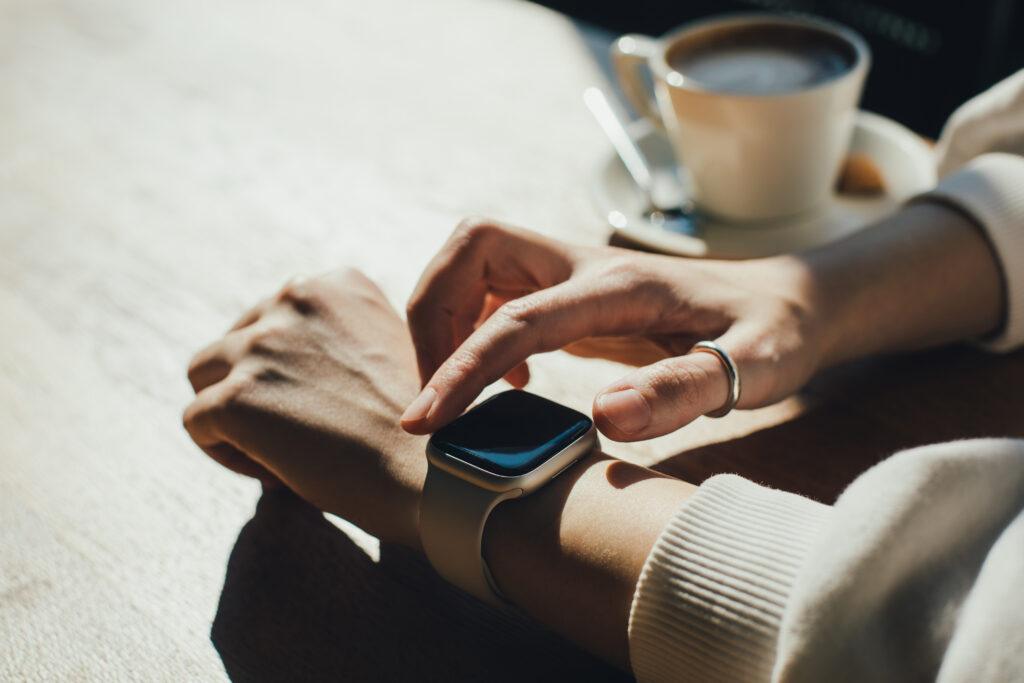
If you have an Apple Watch connected to your iPhone, there is one important thing to remember. Adding your Chase card to Apple Pay on your iPhone does not automatically add it to your Apple Watch.
Apple treats the iPhone and Apple Watch as separate devices for payment cards. If you want to use the same Chase card on both devices, you need to add it to each one separately.
After completing the setup on your iPhone, you can return to the Chase app and repeat the process for your Apple Watch.
This can be particularly useful if you frequently pay with your Apple Watch and do not want to take your phone out every time you make a contactless payment.
Complete the Apple Pay Card Setup
After selecting your iPhone, you will see an Add Card screen. It will show the last four digits of the Chase card you are adding.
You will not normally need to enter the full card number, expiration date, or security code manually because the Chase app provides the necessary information to Apple.
Tap Continue at the bottom of the screen.
Chase will then verify your card. This usually takes only a few seconds. During this part of the process, avoid closing the app or interrupting the setup.
Once the verification is complete, Apple will display the applicable terms and conditions.
Scroll to the bottom and tap Agree.
Apple will then activate the card. After a short wait, you should see a confirmation with a check mark indicating that your Chase card has been successfully added to Apple Wallet.
Choose Your Default Card
After your Chase card has been added to Apple Pay, you may be asked whether you want to make it your default card.
Your default card is automatically selected when you use Apple Pay. You can still manually choose another card when making a payment.
If the Chase card is the one you use most often for everyday purchases, selecting Use as Default Card can make payments more convenient.
If it is a card you only use occasionally, such as a travel or backup card, you can select Not Now and keep your existing default card.
You can always change your default card later through your Apple Wallet settings.
Chase Card Added to Apple Pay
Once the setup is complete, your Chase card is ready to use with Apple Pay.
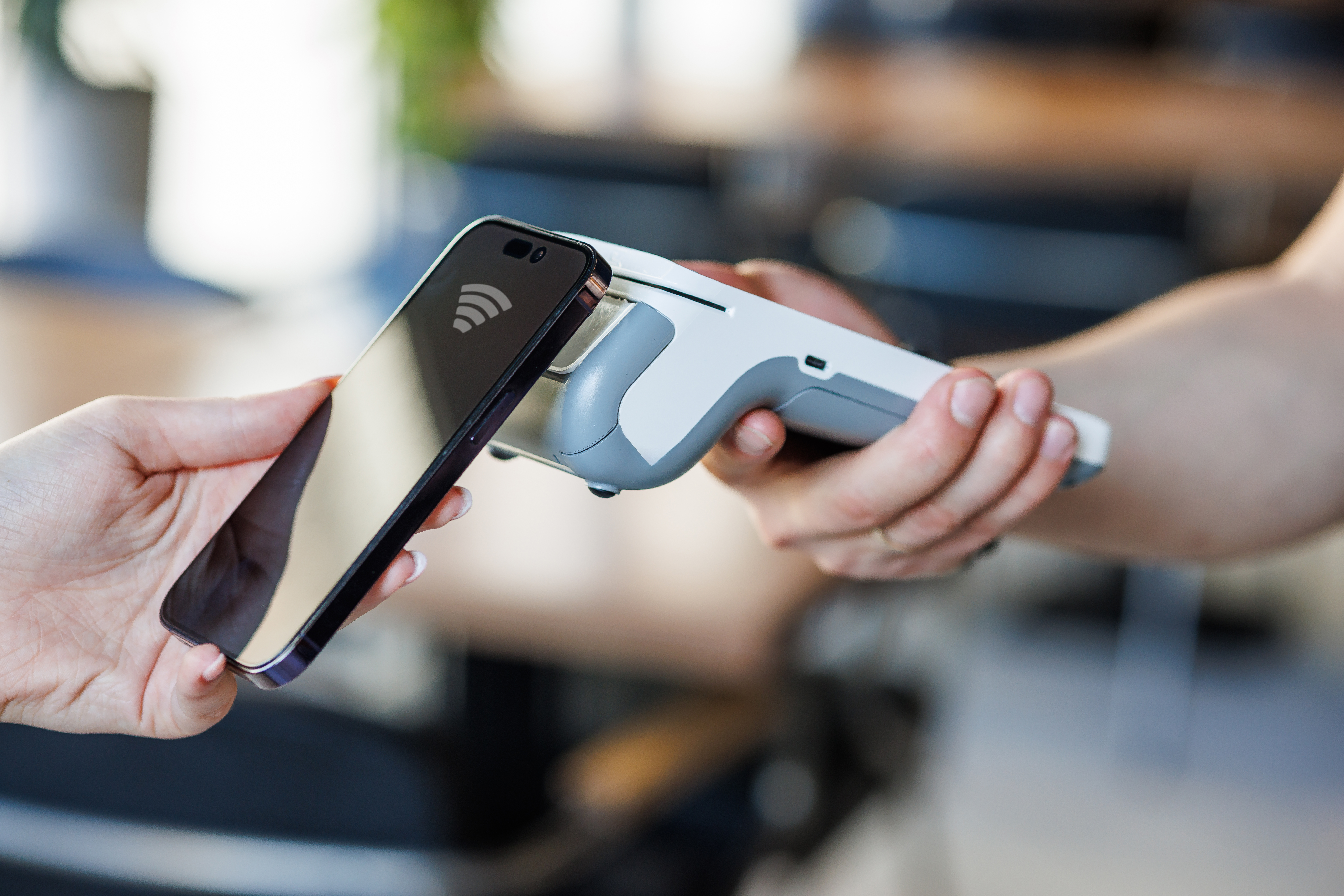
You can use it at stores and other locations that accept contactless payments, including many grocery stores, restaurants, gas stations, vending machines, and transit systems.
To pay with your iPhone, simply use Apple Pay at the payment terminal and authenticate the transaction using the security method configured on your device.
The process for adding a Chase card to Apple Pay is the same whether you are adding a debit card or a credit card. The main difference is simply which Chase card you select during setup.
Apple Pay Security
Adding your Chase card to Apple Pay does not deactivate or replace your physical card. You can continue using your physical Chase card normally.
Apple Pay also does not simply send your actual card number to every merchant. Instead, Apple uses a unique device-specific number for transactions.
This means the merchant does not receive your actual Chase card number when you pay with Apple Pay. Your physical card information therefore isn’t directly shared with the merchant during an Apple Pay transaction.
Final Thoughts
Adding a Chase card to Apple Pay takes only a few minutes and can be done directly through the Chase app. Open your Chase card, go to Manage account, select Add card to digital wallets, choose Apple Wallet, and follow the verification steps.
If you have multiple Apple devices, remember that you may need to add the Chase card to each device separately.
Once your Chase card to Apple Pay setup is complete, you can use your card for convenient contactless payments without having to carry your physical card everywhere.