
Learning how to use Moomoo app efficiently can make a major difference in how you manage your investments. With its sleek interface, real-time data, and wide range of tools, the Moomoo app is designed for both beginner and seasoned traders. In this guide, we will walk you through the platform step by step—from account overview to searching for stocks, placing trades, reviewing financials, and discovering portfolios.
Getting Started: Main Dashboard Overview
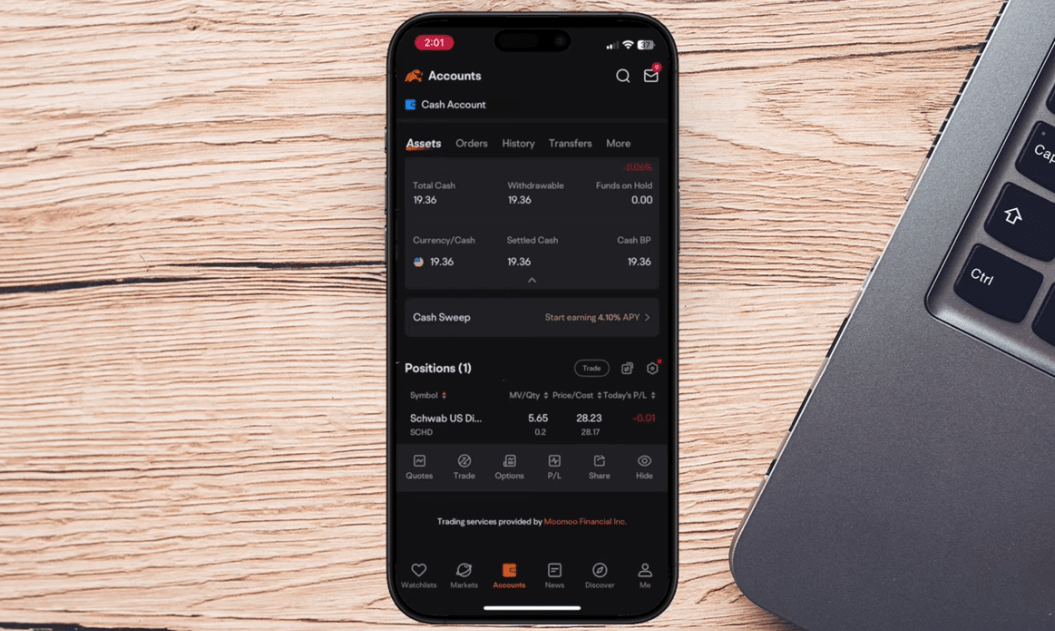
Once you log in to the Moomoo app, you’ll land on the main screen. This is your central hub and gives a quick snapshot of your assets and any open positions. For example, if you have $20 in assets and one open position, that information is clearly displayed up front.
To begin understanding how to use Moomoo app, get familiar with the Account tab. This area shows your portfolio balance and, when swiped down, lists all your open positions. In the example from the transcript, a 0.22 fractional share of SCD is held.
💡 Moomoo supports fractional shares with a minimum purchase of just $5.
How To Use Moomoo App: Searching for Stocks and ETFs
To buy a stock or ETF, start by locating it. Tap on the Search icon in the top-right corner of the screen. You can either search directly (e.g., enter “VTI” for Vanguard Total Stock Market ETF) or explore recommended options categorized as ETFs, Futures, Forex, and trending stocks.
When you tap on a result (like VTI), you’ll be taken to the asset overview. Here’s what’s available on that screen:
- Current price
- Price range (daily high/low)
- Volume
- Chart options
- User comments
- News updates
- Fund ratings and dividend information
Placing a Trade: Buying Stocks or ETFs
After reviewing the asset details, tap Trade to begin the purchasing process. You’ll be directed to a full-screen form where you can set:
- Price
- Quantity
- Order type
If you’re buying a fractional share, tap the swap icon next to the quantity input to change from shares to amount (in dollars). For example, inputting $10 for VTI using a Market order means you’re willing to buy at the current market price without chasing specific price points.
If this is your first time trading, you’ll be prompted to set a trading password, a security measure required to proceed with buy or sell operations.
Confirming the Order
Once all fields are filled:
- Tap Buy
- Review the order details carefully
- Confirm if everything looks correct
Moomoo will prompt you with a popup confirmation. You can opt out of future prompts, but it’s wise to keep them—accidental trades can be costly.
Once the order is confirmed, you’ll receive a message that it’s filled. You can also choose to add the purchased stock or ETF to your watchlist, making it easier to track performance.
Selling Assets on Moomoo
To sell an asset:
- Tap on it in the Account tab
- Select Trade
- Input the quantity you want to sell
- Choose your order type
- Tap Sell
A confirmation screen will follow. If the details are correct, confirm the sale and you’re done. This simple flow is part of what makes learning how to use Moomoo app a smooth experience.
Exploring Additional Features
1. Watchlist
The Watchlist feature allows you to track assets you’re interested in without owning them. Simply search for a stock like NVIDIA and add it to your list.
You’ll see:
- Market position
- Trade overview (inflows/outflows)
- Daily short volume and short interest
2. Company Information
Scroll further for financial data:
- Valuation graphs
- Revenue breakdown
- EPS (Earnings Per Share)
- Financial ratios like current ratio, equity ratio, and gross margin
Even full financial reports like income statements, balance sheets, and cash flow statements are available within the app.
While this data is excellent for a quick review, in-depth research is still best done on a desktop.
Discover Tab: See What Pros Are Doing
One of the standout features when exploring how to use Moomoo app is the Discover tab. It offers a window into publicly available portfolios of prominent traders and figures.
For example, you can explore:
- Nancy Pelosi’s public trade disclosures
- Warren Buffett’s portfolio
- Unique portfolios like “Batman” and “Kathy Wood’s NVIDIA Holdings”
By tapping on one (e.g., the NVIDIA Portfolio), you’ll see:
- Performance over the past 60 days
- Holdings
- Average buying prices
This section is useful for gaining inspiration or benchmarking your own portfolio.
Market Data and Analysis Tools
In addition to company-level data, Moomoo provides broader market analytics:
- Heatmaps
- Sector performance
- Economic calendars
- Real-time news
All of this is integrated directly into the app’s sleek interface, providing powerful insight without having to switch platforms.
Advantages of Using Moomoo
Although this guide is focused purely on how to use Moomoo app, it’s hard not to appreciate the strengths it brings to everyday trading:
- Fractional trading support lowers the barrier to entry
- High-quality data makes analysis on the go feasible
- User-friendly UI ensures that both new and experienced traders can operate efficiently
From placing trades to conducting basic research, the app offers a fully self-contained ecosystem for active investors.
Conclusion: How To Use Moomoo App Efficiently
To recap, understanding how to use Moomoo app involves mastering several key actions:
- Navigating the dashboard and account tabs
- Searching for stocks and ETFs
- Placing and confirming buy and sell orders
- Using the watchlist to track assets
- Exploring company data and financials
- Using the Discover tab to monitor expert portfolios
Whether you’re just starting or optimizing your mobile trading strategy, the Moomoo app is a powerful tool. With real-time updates, deep analytics, and easy order flows, it’s designed to support modern trading on the go.






